Free templateOffice network diagram
Office network
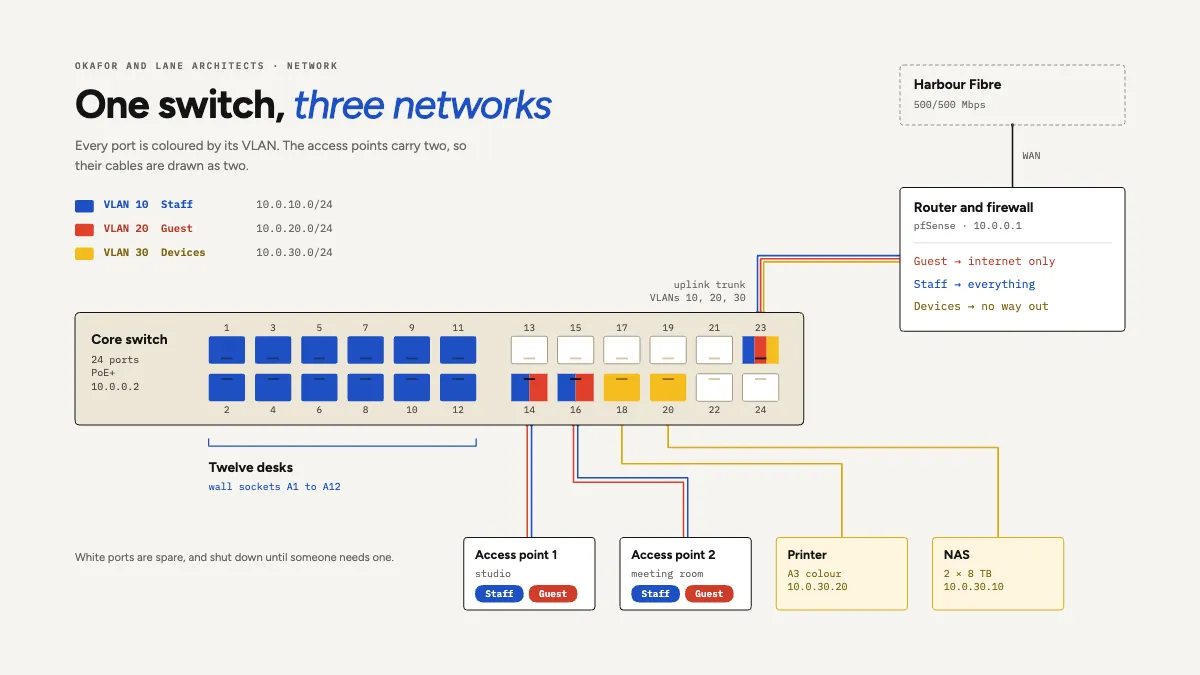
A small office network drawn around the switch’s own front panel: ports coloured by VLAN, trunk cables drawn as one line per network.
Free. It opens in the Motionix editor as your own copy.
Download the pictureWebP, 1200 × 675, free to use. To change the words or colours, open it in the editor.
- Size
- 1920 × 1080 px
- Pages
- 1
- Motion
- Yes, plays live and in GIF or video
- Category
- Technical
What it shows
- A switch drawn port by port
- Trunks drawn as parallel lines
- Firewall rules in plain words
Good for
How to use it
- Open the template. It becomes a project in your account.
- Change the words, colours and pictures. Every part is an ordinary shape, line or text box.
- Press Play to watch it build, then present it or export it.
What is an office network diagram?
An office network diagram shows how the devices in a workplace connect to each other and to the internet: the internet line, router and firewall, switches, wireless access points, desks, printers and storage. It records which network, or VLAN, each port belongs to, the IP ranges in use and the rules between networks. It is the first thing anyone needs when fixing a fault or adding equipment.
When it helps
- An IT contractor taking over a small office's network and needing to know what is plugged in where.
- Planning guest Wi-Fi so visitors cannot reach staff computers or the file server.
- Tracing a fault, such as a printer that some desks can reach and others cannot.
- Answering a cyber security or insurance questionnaire that asks how the networks are separated.
Tips
- Label wall sockets as well as switch ports. "Port 7" means nothing to someone under a desk; "socket A7 to port 7" lets them trace a cable in a minute.
- Shut down spare ports rather than leaving them live on the staff network. An unused socket in a meeting room is an open door for any laptop.
- Give printers, cameras and storage their own VLAN. Such devices are rarely updated and are a common way in, so keep them away from staff laptops.
How to draw an office network diagram
Start at the internet connection
Draw the ISP line, then the router and firewall, with their addresses and the line speed. Everything else hangs off this, so give it the top or one edge of the page.
Draw the core switch
Show the main switch and, in a small office, its individual ports. Note its management address and whether it supplies Power over Ethernet for access points and phones.
Define the VLANs
List each network with its ID, name and subnet, such as VLAN 10 for staff on 10.0.10.0/24. Give each one a colour and use it wherever that VLAN appears.
Map ports to devices
Colour each port by its VLAN and draw cables to what it serves: desk sockets, access points, the printer, the NAS. Leave unused ports visibly empty.
Mark the trunks
A trunk carries several VLANs on one cable, as on the uplink to the firewall or to an access point broadcasting two networks. Show every VLAN each trunk carries.
Write the firewall rules
State in plain words what each network may reach, such as guests to the internet only and devices with no way out. Rules nobody can read do not get reviewed.
FAQQuestions
Common questions.
What is a VLAN?
A virtual local area network splits one physical network into several separate ones. Devices on different VLANs cannot talk to each other unless a router or firewall allows it, even when they plug into the same switch. Offices use VLANs to keep guests, staff and devices apart.
What is the difference between an access port and a trunk port?
An access port carries one VLAN and connects an ordinary device, such as a desktop or printer, that knows nothing about VLANs. A trunk port carries several VLANs at once, each frame tagged with its VLAN ID under the 802.1Q standard, and links switches, firewalls and access points.
What should a network diagram include?
The internet connection, routers, firewalls, switches and access points; how they connect; VLANs and IP subnets; key devices such as servers, storage and printers; and enough labels, like port numbers and addresses, to find each one physically. Diagrams prepared for audits also record the security rules.
More technical templates
Architecture, networks, circuits, plans and data.