Free templateYouTube thumbnail
Why planes fly curved routes
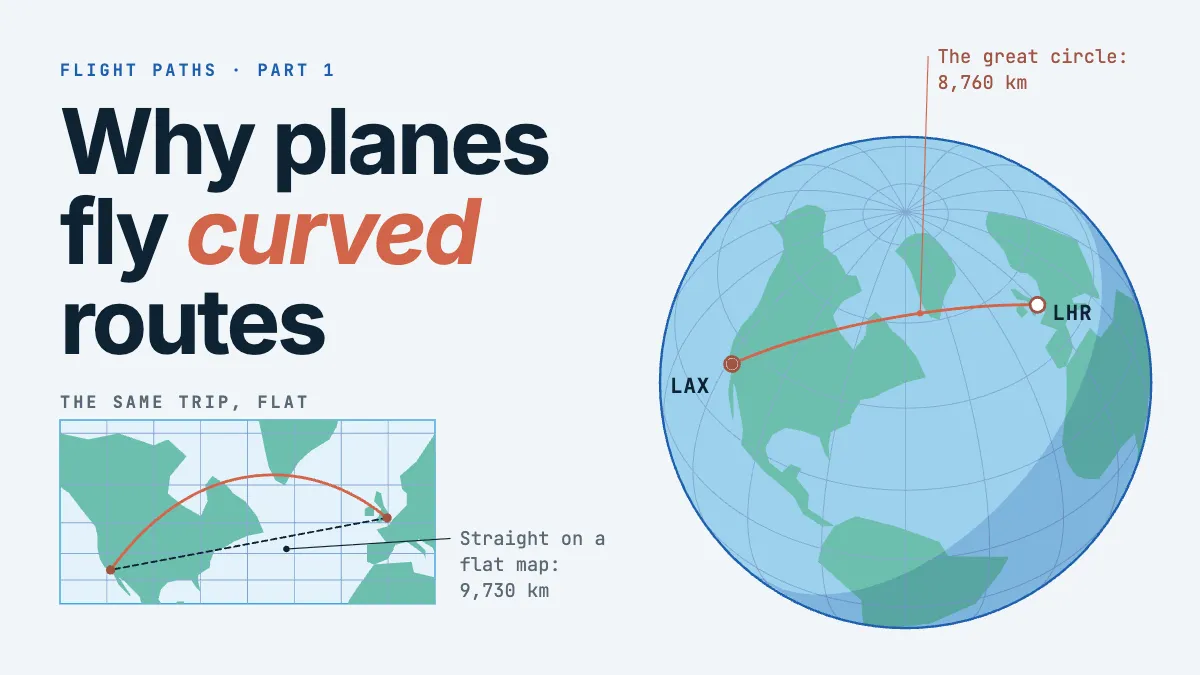
A YouTube thumbnail that draws one flight twice: the great circle on a globe, and the longer straight line on a flat map.
Free. It opens in the Motionix editor as your own copy.
Download the pictureWebP, 1200 × 675, free to use. To change the words or colours, open it in the editor.
- Size
- 1280 × 720 px
- Pages
- 1
- Motion
- Yes, plays live and in GIF or video
- Category
- Covers
What it shows
- A globe computed from real coordinates
- Route that draws itself
- Flat map inset
Good for
How to use it
- Open the template. It becomes a project in your account.
- Change the words, colours and pictures. Every part is an ordinary shape, line or text box.
- Press Play to watch it build, then present it or export it.
What is a YouTube thumbnail?
A YouTube thumbnail is the still image that stands for a video in search results, the home feed, suggested videos and shared links. It is 1280 x 720 pixels at 16:9, under 2 MB, as a JPG, PNG or GIF, yet it is usually seen far smaller than that. So it has to make one promise that reads at a glance; for an explainer, that is often a question beside a picture that half answers it.
When it helps
- Educational explainer channels whose question needs a visual hook, such as a globe with a curved flight path.
- Geography or travel videos that compare two views of one thing, like a globe beside a flat map.
- A numbered series where every episode keeps the same layout, so returning viewers spot it in the feed.
- Trying a second design when a video's click-through rate falls below what the channel normally gets.
Tips
- One subject, one accent colour and a few words beat a thumbnail that tries to summarise the whole video.
- Make the thumbnail, the title and the opening seconds of the video agree; a picture that promises something the video never delivers costs you viewers.
- Judge your design beside others in your niche, not alone on a white screen. Standing out from its neighbours matters more than looking good in isolation.
How to make a YouTube thumbnail
Pick the single idea
Decide which one picture would make someone curious enough to click. For a why question, show the puzzle itself, such as the curved line a plane really flies, rather than a generic stock photo.
Set up a 1280 x 720 canvas
Work at full size so nothing is upscaled later. Keep important details away from the bottom right corner, where YouTube lays the video's running time over the image.
Write three to five words
Thumbnail text should add to the video title, not repeat it. Set it large in a heavy face and break the lines so each one is a short phrase.
Give one element the accent
Choose a single strong colour and spend it only on what matters, such as the route or the key word. Everything else stays calm, so the eye goes there first.
Check it at phone size
Shrink the image to around 160 pixels wide, roughly a small mobile result. If the idea and the words still read, it works; if not, take something away.
Export under 2 MB
Save a JPG or PNG under the upload limit. A high quality JPG is usually small enough while keeping the edges of the lettering crisp.
FAQQuestions
Common questions.
What size is a YouTube thumbnail?
1280 by 720 pixels, a 16:9 ratio, with a minimum width of 640 pixels. The file must be under 2 MB and saved as JPG, PNG or GIF. Designing at full size keeps text sharp on televisions, while checking it small shows how most people will actually see it.
Can I change a YouTube thumbnail after uploading?
Yes. In YouTube Studio, open the video's details and upload a new custom thumbnail whenever you like; custom thumbnails need a verified account. Many creators swap one when a video underperforms, and Studio also offers a test and compare feature for trying up to three versions.
Should a YouTube thumbnail have text?
Often, but only a few words. Text helps when the image cannot carry the idea alone, such as a question or a number. Keep it to roughly three to five words, avoid repeating the title, and make it large enough to read on a phone.
More covers templates
Thumbnails, episode covers, banners and headers.