Free templateYouTube banner
Cooking channel banner
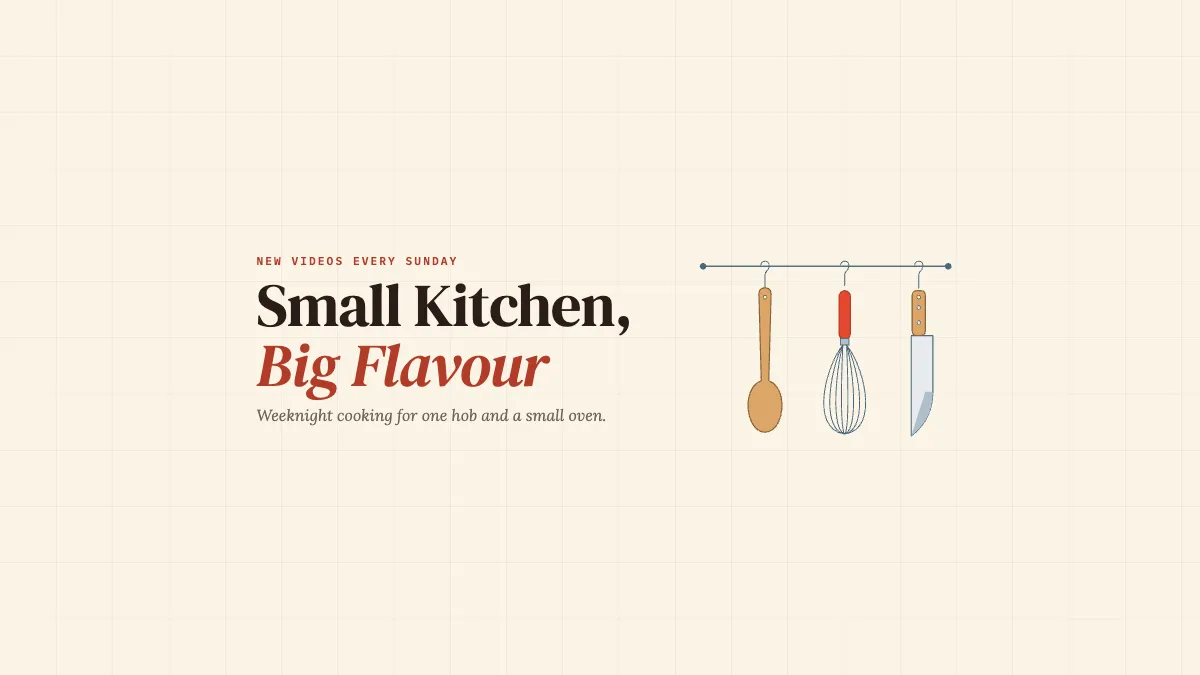
A YouTube channel banner for a home cook: a spoon, a whisk and a knife hanging from one rail, all inside the safe area.
Free. It opens in the Motionix editor as your own copy.
Download the pictureWebP, 1200 × 675, free to use. To change the words or colours, open it in the editor.
- Size
- 2560 × 1440 px
- Pages
- 1
- Motion
- Yes, plays live and in GIF or video
- Category
- Covers
What it shows
- Safe area respected
- Utensils drawn from primitives
- True italic in the name
Good for
How to use it
- Open the template. It becomes a project in your account.
- Change the words, colours and pictures. Every part is an ordinary shape, line or text box.
- Press Play to watch it build, then present it or export it.
What is a YouTube banner?
A YouTube banner, also called channel art, is the wide image across the top of a channel page. YouTube asks for 2560 x 1440 pixels at 6 MB or less, but only the central 1546 x 423 safe area appears on every device: phones crop to it, desktops show a wider strip and televisions show the whole image. Anything that must be read, such as the channel name and upload day, belongs in that safe area.
When it helps
- A food creator stating the channel's promise, such as weeknight cooking for a small kitchen.
- Announcing an upload day so visitors know exactly when to come back.
- Refreshing a channel's look when its focus changes, while keeping the name prominent.
- Matching the banner to the thumbnails so the whole channel page looks like one brand.
Tips
- Draw objects that belong to the topic, like a spoon, a whisk and a knife for cooking, rather than your face; the profile picture already does that job.
- Size the type for the phone view, where the safe area shrinks to a thin strip. A subtitle that reads on a monitor can vanish on a mobile.
- Reuse the accent colour from your thumbnails, so a visitor arriving from one of your videos recognises the channel at once.
How to make a YouTube banner
Mark the safe area first
On a 2560 x 1440 canvas, draw a guide for the central 1546 x 423 area. Put every word and the key illustration inside it before decorating anything else.
Say what the channel is
Beside the name, add one line describing the content and the audience, such as cooking for one hob and a small oven. Visitors decide quickly whether a channel is for them.
Add the upload schedule
A short line like new videos every Sunday sets expectations and gives a casual visitor a reason to subscribe instead of watching a single video.
Fill the wider area quietly
Desktop and television viewers see beyond the safe area, so extend the background with a texture or pattern, such as kitchen tiles or a soft grid, but nothing essential.
Check all three device previews
When you upload, YouTube previews the banner for television, desktop and mobile. Look at each, especially the phone view, where the image is at its shortest.
FAQQuestions
Common questions.
What size is a YouTube banner?
2560 by 1440 pixels, with a minimum of 2048 by 1152 and a file size of 6 MB or less. The safe area for text and logos is the central 1546 by 423 pixels, the only part that every device is guaranteed to show.
Why is my YouTube banner cut off?
Each device shows a different crop of the same image. Televisions show the full 2560 by 1440, desktops a wide strip through the middle and phones roughly the 1546 by 423 safe area. Anything placed outside that area will be cut on at least one screen.
Can I change my YouTube banner?
Yes, as often as you like. In YouTube Studio, open the customisation settings for your channel and upload a new banner image, or remove the current one. Changes can take a little while to appear on every device after you publish them.
More covers templates
Thumbnails, episode covers, banners and headers.