Free templateLinkedIn carousel
The 1-3-1 rule
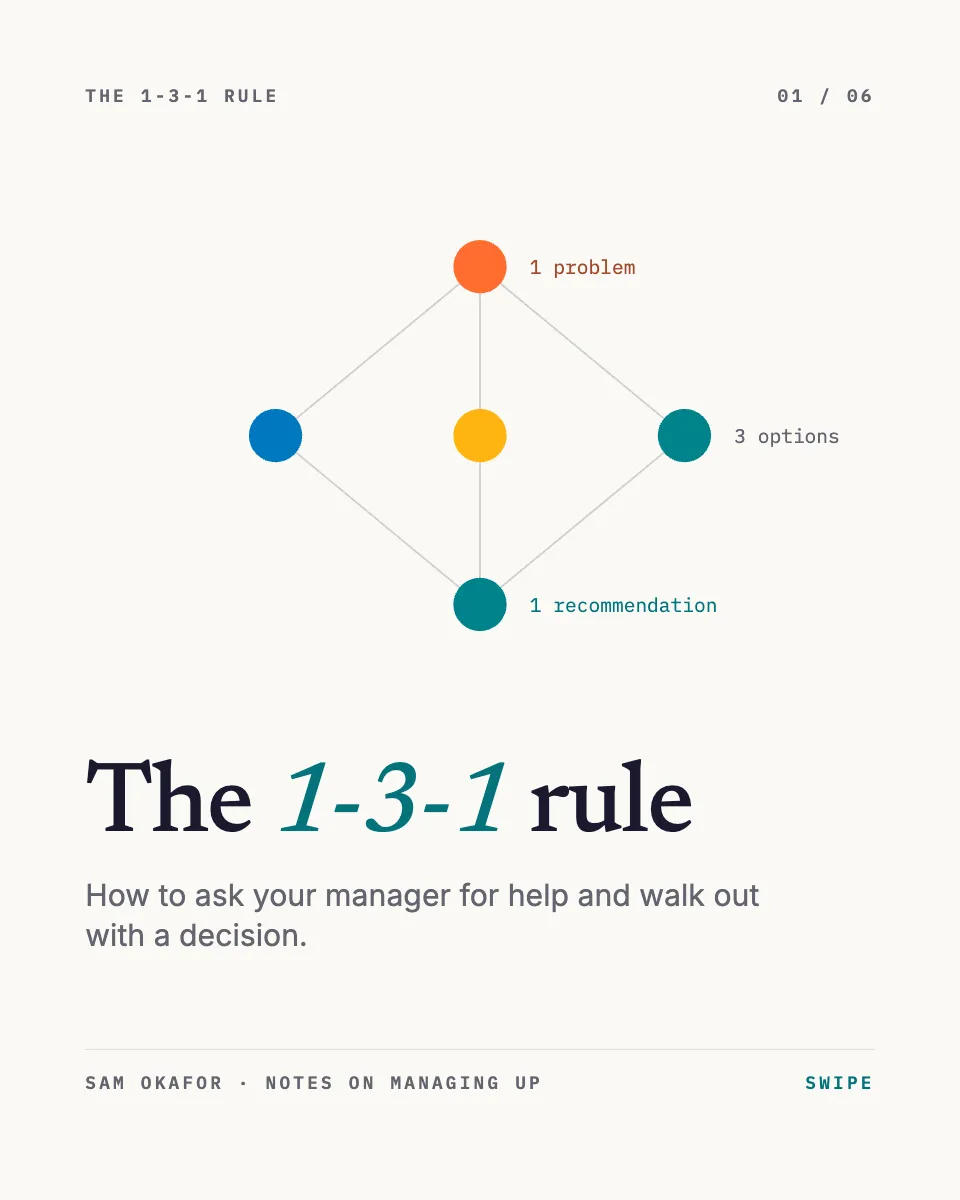
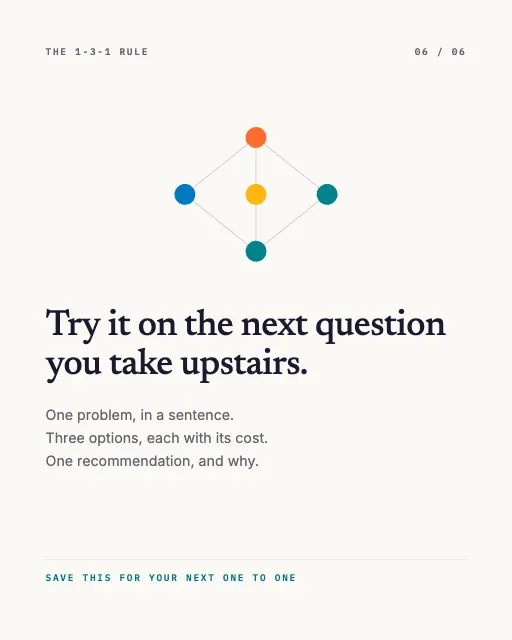
A six-page LinkedIn carousel on asking for help well. One small figure runs through every page and marks where you are.
Free. It opens in the Motionix editor as your own copy.
Download the pictureWebP, 960 × 1200, free to use. To change the words or colours, open it in the editor.
- Size
- 1080 × 1350 px
- Pages
- 6
- Motion
- Yes, plays live and in GIF or video
- Category
- Social posts
Every page
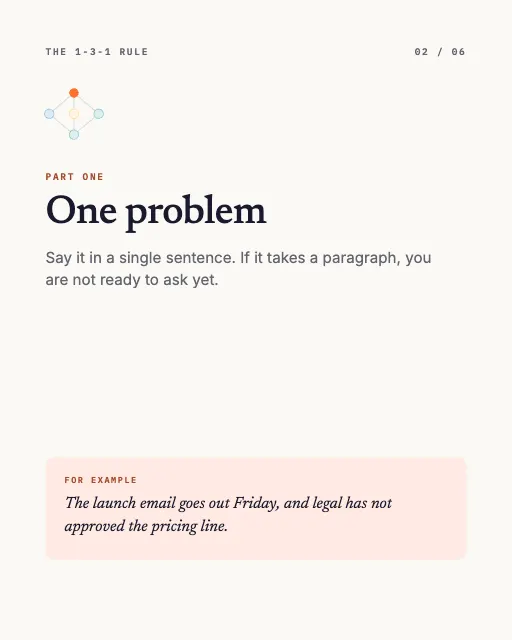 Page 2
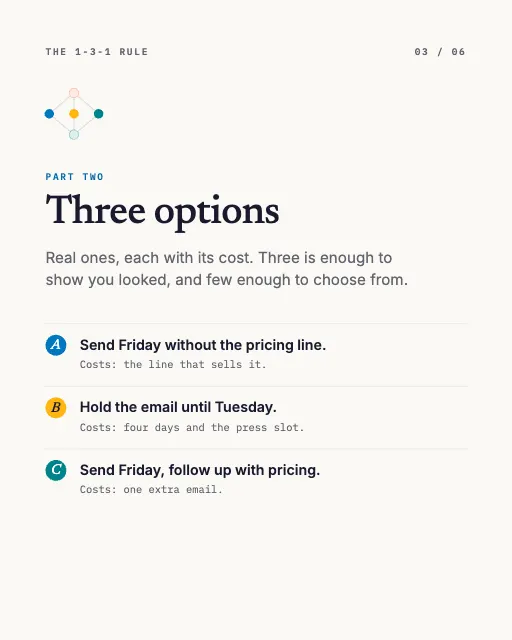 Page 3
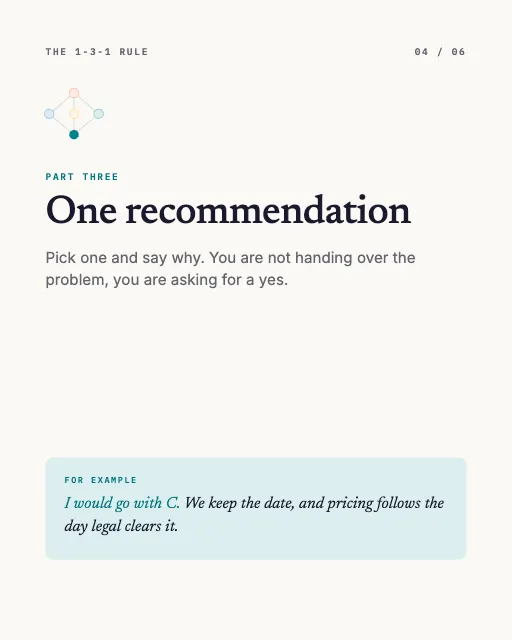 Page 4
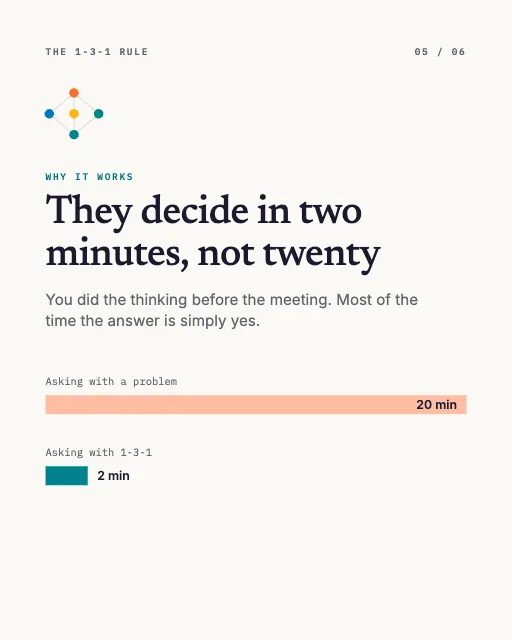 Page 5
 Page 6
What it shows
- Six-page carousel
- Page numbers that count themselves
- A figure that tracks progress
Good for
How to use it
- Open the template. It becomes a project in your account.
- Change the words, colours and pictures. Every part is an ordinary shape, line or text box.
- Press Play to watch it build, then present it or export it.
What is a LinkedIn carousel?
A LinkedIn carousel is a post made of several slides that people swipe through in the feed. It is uploaded as a PDF document, and each page of the PDF becomes one slide. Carousels suit ideas that unfold in steps, such as a framework, a process or a short lesson, because each page can carry one point with room for a clear visual.
When it helps
- A manager sharing a framework, such as the 1-3-1 rule for asking for help, with their network.
- A consultant breaking one practical method into six pages that people save for later.
- A founder or recruiter explaining a process step by step instead of in a long text post.
- Turning a talk or blog post into a short visual summary for a professional audience.
Tips
- Write for a phone screen: if a line is hard to read at arm's length on your own phone, it is too small or too long.
- Give the example as much room as the principle. Readers remember the launch email legal had not cleared long after they forget an abstract rule.
- Repeat one small visual on every page, such as a diagram that lights up the current step; it ties the set together and shows progress without extra words.
How to make a LinkedIn carousel
Choose one idea
Pick a single framework or lesson that splits naturally into steps. The 1-3-1 rule, one problem, three options, one recommendation, fits six pages: a cover, three parts, why it works and a closing action.
Set the page size
Design every page at the same size, commonly 1080 x 1350 pixels for a tall 4:5 format or 1080 x 1080 for square. Mixed sizes look broken in the feed.
Write the cover as a promise
Make the first page say what the reader gets, in a few words large enough to read on a phone. It is the only page most people see before deciding to swipe.
One point per page
Give each inner page a short heading, a sentence or two and a concrete example. Page numbers and a recurring figure help readers know where they are.
End with a clear next step
Close on a recap and a single action, such as trying the method before their next one to one, rather than a list of links.
Export as one PDF
Save the pages as a single PDF, check the order, then upload it as a document post and give it a title, which LinkedIn shows on the carousel.
FAQQuestions
Common questions.
What size should a LinkedIn carousel be?
Common choices are 1080 x 1350 pixels, a 4:5 portrait shape that fills more of a phone screen, and 1080 x 1080 square. Whichever you pick, keep every page the same size and export the set as a single PDF.
How many slides should a LinkedIn carousel have?
Enough to tell the idea and no more. Most carousels run from about five to ten pages: a cover, one page per step and a closing page. If a page has nothing new to say, cut it rather than padding the count.
Why are LinkedIn carousels posted as PDFs?
Because LinkedIn treats them as document posts: you upload a PDF, PowerPoint or Word file and it is shown page by page with a swipe. PDF is the safest choice, since it keeps fonts, colours and layout exactly as you designed them.
More social posts templates
Carousels, stories and single posts for LinkedIn and Instagram.